
 Admin Drey
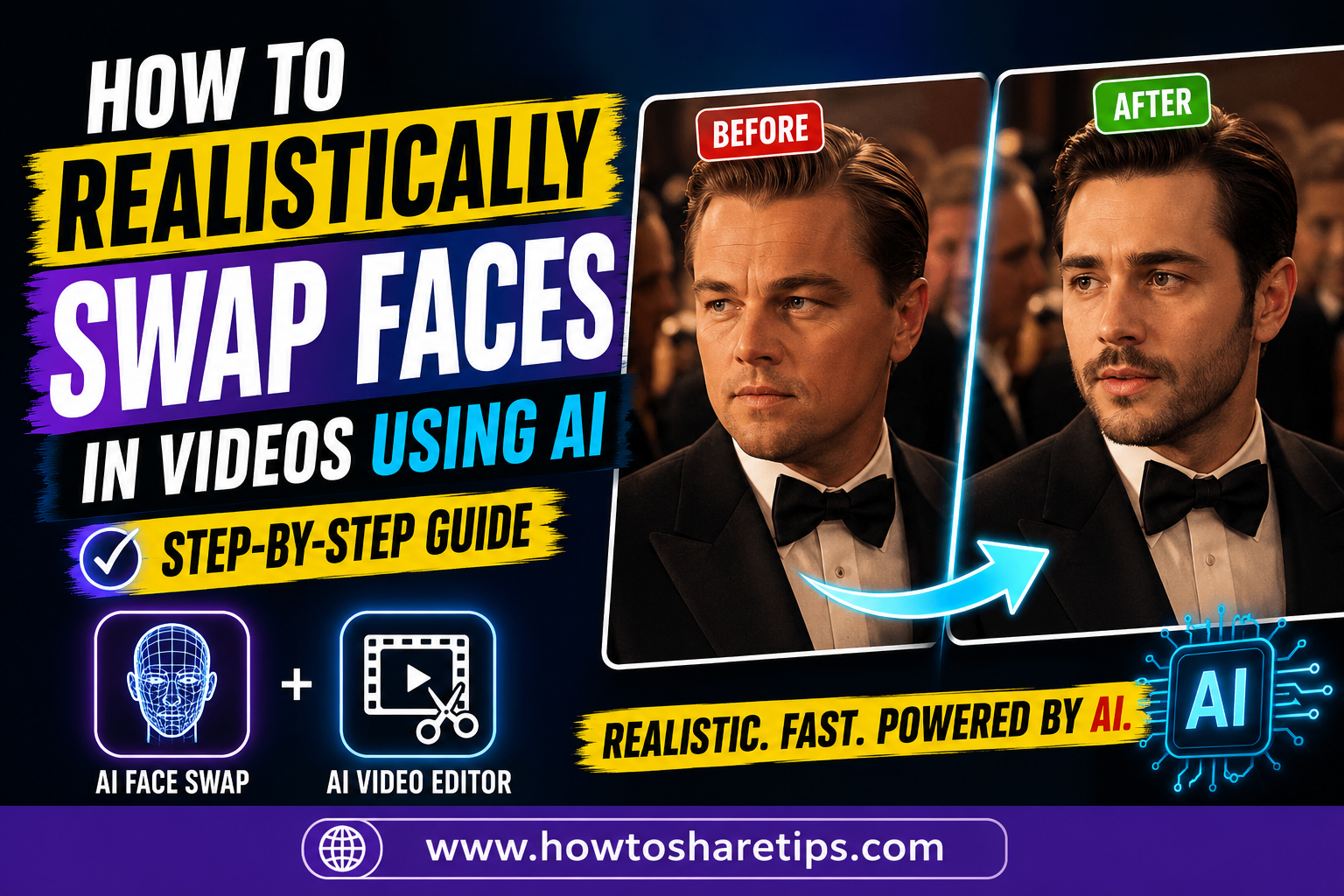
How to Realistically Swap Faces in Videos Using AI is easier than ever thanks to advanced AI Face Swap and AI Video Editor tools. Whether you’re a content creator, digital marketer, filmmaker, or social media enthusiast, learning How to Realistically Swap Faces in Videos Using AI allows you to create realistic, high-quality videos without requiring professional editing skills.
In this step-by-step guide, you’ll learn How to Realistically Swap Faces in Videos Using AI using powerful AI tools that accurately map facial expressions, lighting, and movements for seamless results. We’ll also cover the best AI Face Swap software, AI Video Editor features, and practical tips for producing natural-looking videos for YouTube, TikTok, Instagram Reels, and other social media platforms.
By the end of this tutorial, you’ll have a complete workflow for How to Realistically Swap Faces in Videos Using AI, enabling you to create professional AI-generated videos while saving time and improving your content creation process.
Ever wondered how people manage to swap faces so realistically in videos, as if it’s straight out of a Hollywood VFX studio? In this guide, we’ll show you exactly how you can perform ultra-realistic face swaps in videos using the power of artificial intelligence without needing any expensive software or editing skills. Whether you want to create fun content, memes, or cinematic edits, this tutorial is your complete solution.
Meet JustRemaker AI: Your Go-To Tool for Face Swapping
We’ll be using a powerful web-based tool called JustRemaker AI. This tool allows users to effortlessly swap faces in videos and photos with stunning realism and high-definition output.
Direct Access: https://justremaker.ai (Also linked in the YouTube video description)
Step-by-Step Guide to Swapping Faces in Videos
1. Open Chrome Browser
Start by opening your Chrome browser on your phone or desktop. In the search bar, type “JustRemaker AI” and hit search. Click on the first result that appears, this is the official website.
2. Sign In with Google
Once you land on the homepage, click on the “Login/Sign In” option and sign in using your Google account. This will create your free JustRemaker AI account.
3. Explore the AI Tools
Inside the dashboard, you’ll see several tools including:
- Face Swap
- Background Remover
- AI Voice Cloning
- Magic Eraser
- AI Photo Generator
- AI Meme Generator
- AI Baby, Avatar, Filters, and more
While these tools are great for creative projects, today our focus is on the Face Swap tool for videos.
4. Navigate to the Face Swap Tool
Click on “Video Face Swap”. You will be presented with three options:
- Single Face
- Multiple Faces
- Batch Processing
Choose the one that fits your project. For this tutorial, we’ll go with the “Single Face” option.
5. Upload the Original Video
Click on the “Upload” button and select the video in which you want to replace a face. After a few seconds, your video will be uploaded and ready for editing.
6. Upload the Target Face
Next, click on “Upload Target Face” and upload the image of the face you want to add to the video. For instance, if you’re replacing Cristiano Ronaldo’s face with Shah Rukh Khan’s, upload a high-quality image of Shah Rukh Khan.
Tip: Always use high-resolution images for the best results. The better the input, the more realistic the output.
7. Choose Output Quality
You’ll have two options for video quality:
- Regular: Standard HD (720p–1080p)
- HD: High-quality rendering with more detail
Choose HD for the best results, especially if you’re sharing on platforms like YouTube or Instagram.
8. Start Processing
Click “Start” to begin the face-swapping process. It usually takes under 2 minutes to complete. Once done, preview your video and you’ll notice the new face seamlessly blended into the original footage.
9. Download and Save
Click the three-dot menu and hit “Download” to save the final video to your device. You can also use the “Zoom” and “Details” feature to inspect the final output closely.
Bonus Demo: Swapping Gender or Multiple Faces
To demonstrate the power of this tool, here’s an example where we swapped a woman’s face with a man’s, replacing it with the face of Indian cricketer Virat Kohli. The transformation was shockingly realistic, and it only took a couple of minutes to generate.
Ethical Reminder: This example was for educational purposes only. Do not misuse AI tools for impersonation, harassment, or any unlawful activity. Always use AI responsibly.
Other Creative Tools on JustRemaker AI
In addition to face swapping, here are more tools you can experiment with:
- AI Voice Cloning: Create voiceovers with cloned voices
- Video Background Remover: Remove backgrounds from videos
- Image Upscaler: Enhance low-res images to HD
- AI Meme Generator: Create hilarious AI-generated memes
- AI Baby & Avatar Creators: Turn yourself into a baby or cartoon avatar
Related Tools Worth Exploring
Here are some other AI platforms to explore:
- Remini AI – For photo and video enhancement
- Runway ML – For AI video editing
- SnapEdit – AI-based object remover for photos
- CapCut – Best app for editing short videos with AI tools
Conclusion
How to Realistically Swap Faces in Videos Using AI has become more accessible than ever, thanks to powerful tools like JustRemaker AI. What once required expensive video editing software, advanced technical skills, and hours of manual work can now be completed in just a few clicks. With nothing more than a web browser, a high-quality source image, and a few minutes of your time, you can create incredibly realistic face-swapped videos for a wide range of creative projects.
Whether you’re a content creator producing engaging social media content, a digital marketer designing eye-catching promotional videos, a filmmaker experimenting with visual effects, a meme creator looking for the next viral idea, or simply someone exploring the latest AI innovations, AI face-swapping technology offers endless creative possibilities. Modern AI Face Swap and AI Video Editor tools preserve facial expressions, lighting, and natural movements, making the final results look remarkably authentic.
As with any AI technology, it’s important to use these tools responsibly. Always obtain permission before using another person’s image, respect copyright and privacy laws, and avoid creating misleading or harmful content. Ethical use helps ensure AI remains a powerful tool for creativity, education, and entertainment.
Now that you’ve learned How to Realistically Swap Faces in Videos Using AI, you’re ready to start creating your own realistic AI videos. Experiment with different images, video styles, and editing techniques to discover what works best for your audience. The more you practice, the more polished and professional your results will become.
Read More: How to Create Viral FIFA World Cup 2026 AI Videos for TikTok (Easy Guide)
If you found this guide helpful, be sure to explore more AI tutorials, content creation tips, and digital marketing resources on our blog. We regularly publish in-depth guides on the latest AI tools, automation software, image generation, video editing, and productivity solutions to help you stay ahead in the fast-moving world of artificial intelligence.
Happy creating, and don’t forget to use AI responsibly while bringing your most imaginative ideas to life!
Pro Tip:
Bookmark this page or JustRemaker AI for quick access when you’re ready to edit your next viral video.
That’s it for today’s guide. See you in the next post, until then, stay creative and share the joy!


 Admin Drey