
 Admin Drey
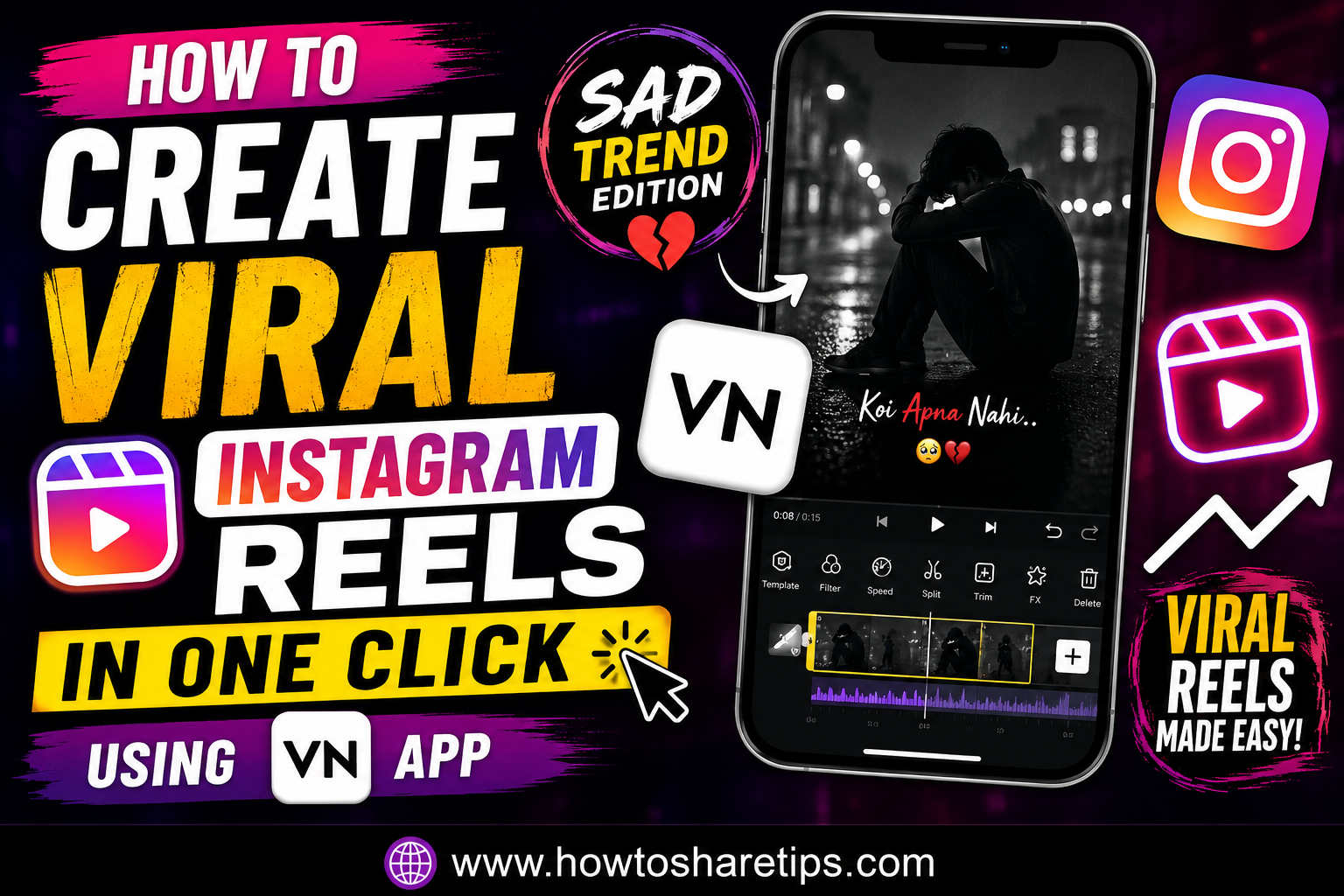
How to Create Viral Instagram Reels in One Click Using VN App (Sad Trend Edition) is one of the easiest ways to produce engaging, emotional, and shareable Instagram Reels without spending hours editing videos. Whether you’re a beginner, content creator, influencer, or digital marketer, mastering How to Create Viral Instagram Reels in One Click Using VN App (Sad Trend Edition) can help you create professional-quality Reels that attract more views, likes, comments, and followers.
In this guide, you’ll learn How to Create Viral Instagram Reels in One Click Using VN App (Sad Trend Edition) using the powerful features of VN Video Editor. From importing your clips and applying the latest sad trend template to syncing music, adding cinematic effects, and exporting in high quality, every step is explained in detail.
Why Use VN Video Editor for Instagram Reels?
VN Video Editor is a free and user-friendly video editing app that makes it simple to create viral Instagram Reels. It includes professional editing tools such as:
- One-click templates
- Smooth transitions
- Trending music synchronization
- Text animations
- Color filters
- HD and 4K video export
- No watermark (depending on your export settings)
These features make VN Video Editor & Instagram Reels Editing an excellent choice for creators looking to produce high-quality content quickly.
If you’ve been scrolling through Instagram lately, you’ve probably noticed a specific type of emotional or “sad” reel that’s going super viral. The great news is, you can create these trending reels with just one click using the free VN Video Editor App.
In this step-by-step tutorial, I’ll show you exactly how to make these trending reels, add music, and export them in high quality, all using your phone. If you upload this type of reel consistently, your chances of going viral on Instagram increase significantly.
Let’s dive right in!
Step 1: Download and Install the VN App
First, head over to the Google Play Store or Apple App Store and install the VN Video Editor. It’s 100% free and has powerful editing tools for creating viral content.
Step 2: Don’t Start a New Project. Use This One-Click Trick
Instead of creating a new project manually, here’s a shortcut:
- Open the VN app.
- Click the QR Scan icon at the top.
- Tap on the “Gallery” option.
- From here, select one of the two QR codes provided in the video description. Each QR code corresponds to a different reel style.
You can download the QR codes from the video’s description and save them to your phone gallery.
Example templates include:
- Sad emotional reel
- Broken-heart aesthetic with cinematic slow-motion
Pro Tip: These templates are pre-edited and extremely popular in the current Instagram Reels trends. You don’t need any advanced editing skills.
Step 3: Select Your Image & Apply the Template
Once your QR code template loads:
- Click on Use Template.
- Select a sad or emotional photo from your gallery (matching the mood of the song).
- Tap on Replace to insert your image.
- Click Next to finalize the video.
Your full video will now be generated automatically but without music (we’ll add that next).
Step 4: Export Your Video
Before adding music, export the base video:
- Tap Export.
- Select the following settings:
- Quality: 1080p
- Frame Rate: 60 fps
- Bitrate: Around 50 Mbps
This ensures your video remains HD-quality and professional-looking, perfect for Instagram or TikTok uploads.
Step 5: Add Background Music
Here’s the problem: VN doesn’t automatically include audio when using QR templates. But you can fix this easily.
- Go back to the VN homepage and tap + to create a new project.
- Select your exported video file and tap Next.
- Tap the PIP (Picture-in-Picture) option.
- Click on Photo, but stay in the Video section.
- Download the music-only video from the video description (link provided).
Audio Preview: You can listen to the track before importing. Just hit play once it’s loaded in VN.
Once added:
- Extract the audio by selecting Extract Audio.
- Delete the video overlay, keeping only the audio track.
- Now your full emotional reel has both visuals and music.
Export the final video again using the same 1080p 60fps settings.
Step 6: Repeat with Other Templates
Want to create more viral reels in seconds? Just repeat the process:
- Scan the second QR code from the description.
- Select a new image.
- Replace and export.
- Add music using the same method.
This method works beautifully for emotional edits, trending sad songs, solo photo videos, and more.
Tips to Make Your Instagram Reels Go Viral
- Use trending music and effects.
- Keep your Reel between 10 and 30 seconds.
- Grab attention within the first three seconds.
- Add captions for better accessibility.
- Post consistently.
- Encourage viewers to like, comment, and share.
Conclusion
With just one click using the VN App, you can create viral sad reels that are trending across platforms like Instagram Reels, Facebook Stories, and TikTok. This style is emotional, shareable, and connects instantly with audiences.
Whether you’re just starting out or looking to grow your social presence, these types of videos can help you reach thousands of viewers with very little effort.
Don’t forget:
- Use emotional or cinematic photos
- Stick with trending songs (use our provided music clips)
- Export in 1080p for best results
That’s it for today’s tutorial. If you liked it, share it with a friend who also creates reels or edits videos.
Until next time, stay creative and keep spreading positivity!
External Resources

 Admin Drey