

Scheduling meetings can often feel like a tedious task, but Calendly simplifies the process, saving valuable time for freelancers, business owners, and team leaders alike. By mastering the Calendly login process, you unlock a powerful suite of scheduling tools that integrates seamlessly with calendars and communication platforms. In this guide, I’ll walk you through every step to log in, troubleshoot issues, and get started efficiently.
Why I Use Calendly for Scheduling
Calendly eliminates the constant back-and-forth when finding a suitable meeting time. By connecting my calendar and setting my availability, I can share a personalized booking link that allows others to select times that work for me.
Moreover, Calendly integrates effortlessly with Google Calendar, Microsoft Teams, Zoom, Outlook, and other productivity tools. Logging in gives me immediate access to these integrations, helping me schedule, manage, and track meetings without stress. With a simple login, I can focus on actual work rather than organizing meetings manually.
Step-by-Step Guide to Logging in to Calendly
Step 1: Navigate to the Calendly Login Page
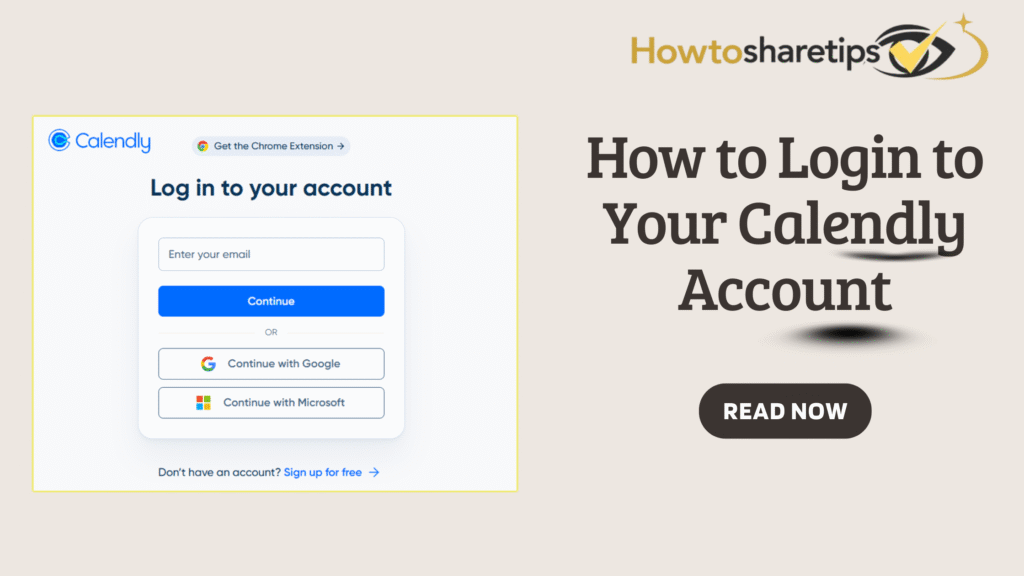
First, I open my preferred browser and go to calendly.com/login. Alternatively, I can search “Calendly login” on Google and select the official link. The login page is clean, intuitive, and easy to navigate, with options tailored for both new and returning users.
Step 2: Choose Your Login Method
Calendly offers multiple ways to access your account, giving you flexibility and convenience:
-
Email and Password: I enter my registered email and password. This method is straightforward and reliable.
-
Google or Microsoft Account: For a faster login, I often use my Google or Microsoft account. By clicking “Sign in with Google” or “Sign in with Microsoft,” I can authenticate instantly and bypass typing a password.
-
Single Sign-On (SSO): Enterprise users can log in securely via their organization’s credentials using SSO. This ensures seamless access across work platforms.
Step 3: Verify Your Account (If Required)
If I log in from a new device or browser, Calendly may send a verification email. I check my inbox and spam folder, then click the confirmation link to complete the login process. This step adds an extra layer of security to protect my account.
Step 4: Access Your Dashboard
After logging in successfully, I land directly on my Calendly dashboard. From here, I can:
-
Manage event types and scheduling preferences
-
View upcoming meetings and invitations
-
Create new booking links for clients or colleagues
-
Integrate with Zoom, Google Meet, or Microsoft Teams
The interface is intuitive, allowing me to schedule meetings efficiently and reduce administrative overhead.
Troubleshooting Common Login Issues
Even with Calendly’s reliable platform, I’ve occasionally faced login challenges. Here’s how I resolve them:
-
Forgotten Password: Click “Forgot Password?” and follow the emailed link to reset your password.
-
Browser Issues: Clear the browser cache, update the browser, or try incognito mode. Switching browsers may also help.
-
Account Suspension: Check email notifications for account alerts or contact Calendly support.
-
Technical Glitches: Ensure a stable internet connection and visit Calendly’s status page for any outages.
Getting Started with Calendly for New Users
If you’re new to Calendly, follow these steps to set up an account before logging in:
-
Visit calendly.com and click “Sign Up Free.”
-
Register using your email, Google, or Microsoft account.
-
Verify your email by clicking the confirmation link sent to your inbox.
-
Set up your profile, availability, and personalized booking link.
-
Connect your calendar to sync availability automatically.
The free plan is ideal for individuals, while paid plans unlock advanced features such as team scheduling, round-robin assignments, and priority support. Once the account is ready, log in using the methods outlined above to start managing your meetings efficiently.
Calendly Login FAQs
How do I reset my Calendly password?
Click “Forgot Password?” on the login page and follow the link sent via email to create a new password.
Can I log in using Google or Microsoft?
Yes. Click the corresponding button on the login page and authenticate through your linked account.
What is Single Sign-On (SSO)?
SSO allows enterprise users to log in with organization credentials. Access SSO at calendly.com/app/admin/login/sso.
Why can’t I log in?
Double-check your credentials, clear your browser cache, ensure a stable internet connection, or contact Calendly support.
Is my account secure during login?
Yes. Calendly encrypts login data and offers two-factor authentication for enhanced security.
Can I access Calendly on mobile devices?
Absolutely. Use the iOS or Android app, or log in via a mobile browser to manage meetings on the go.
Logging into Calendly is simple, secure, and essential for anyone looking to streamline scheduling. By following these steps, you can access your dashboard, manage meetings, and integrate your favorite productivity tools without hassle.
Whether you’re coordinating client calls, team meetings, or personal appointments, Calendly helps you save time and stay organized. With a reliable login process, intuitive interface, and multiple access options, you can maximize productivity and focus on what truly matters.