
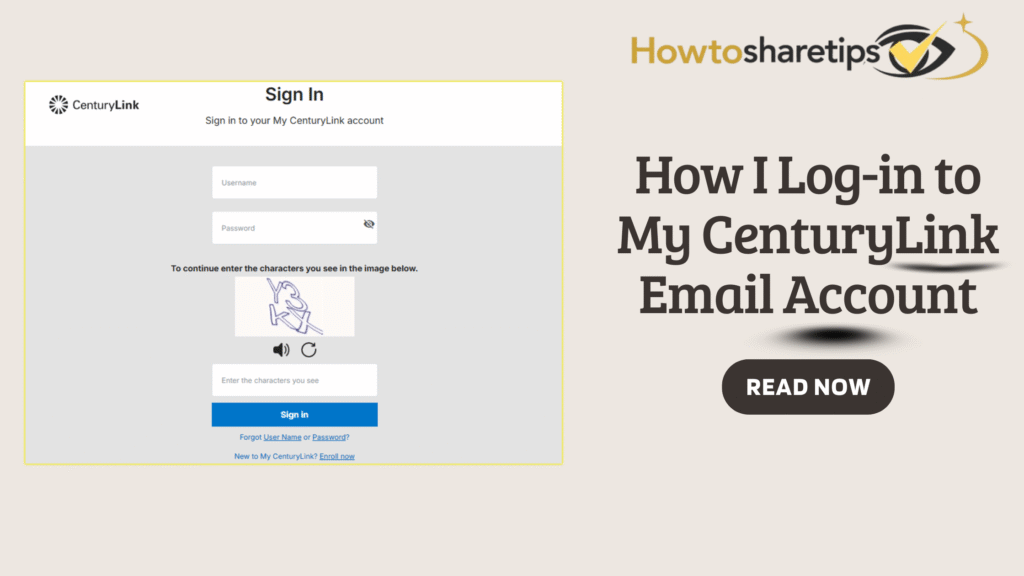

For anyone relying on CenturyLink for high-speed internet and email services, accessing your CenturyLink email should be simple and hassle-free. Whether you use it for personal communication, work correspondence, or managing subscriptions, having quick and reliable access to your inbox is essential. Fortunately, CenturyLink provides a user-friendly interface that makes logging in, sending messages, and organizing your emails seamless.
In this guide, I’ll walk you through every step of accessing your CenturyLink email, from logging in for the first time to managing your account efficiently. You’ll learn how to troubleshoot common login issues, set up your email on different devices, and optimize your inbox for better productivity. By following these instructions, you’ll be able to stay connected, respond to messages promptly, and take full advantage of CenturyLink’s email features without unnecessary delays or frustration.
With clear steps and practical tips, this guide ensures that whether you’re a new user or an experienced subscriber, you can navigate CenturyLink email with confidence and ease.
Why I Use CenturyLink Email
CenturyLink provides a free email account with its internet service, making it convenient for personal and professional communications. The platform offers:
-
A user-friendly interface.
-
Enhanced security with two-factor authentication (2FA).
-
Quick access with the ability to stay signed in.
The My CenturyLink app also lets you manage your account on the go, making it easy to check emails anytime.
How to Login to Your CenturyLink Email Account
1. Visit the CenturyLink Email Login Page
Open your preferred web browser and go to centurylink.net. You can also access webmail directly at webmail.centurylinkoffice.net. Bookmarking the page helps speed up future logins.
2. Locate the Email Login Option
On the homepage, click Email Login/Signup at the top. In the My CenturyLink app, the login option is under My Services. If needed, click Sign In and choose Check your CenturyLink email.
3. Enter Your Credentials
Input your full email address (e.g., username@centurylink.net) and password. Passwords are case-sensitive, so double-check for typos. On personal devices, you may select Remember Me for automatic login. Avoid this on public devices.
4. Complete Two-Factor Authentication (If Enabled)
If 2FA is enabled, enter the verification code sent to your phone or alternate email. This adds an extra layer of security.
5. Access Your Inbox
Click Sign In to enter your inbox. The webmail interface allows you to manage folders, filter spam, and adjust readability. The mobile version provides a streamlined experience on the go.
Using the My CenturyLink App
Download the My CenturyLink app from the App Store or Google Play. Navigate to My Services, select email login, and enter your credentials. Complete any 2FA steps to access your inbox.
Setting Up CenturyLink Email on a Mail Client
For Outlook or iOS Mail app users, configure your account with these settings:
IMAP:
-
Incoming Server: imap.centurylink.net
-
Port: 993
-
Security: SSL/TLS
POP:
-
Incoming Server: pop.centurylink.net
-
Port: 995
-
Security: SSL/TLS
SMTP (Outgoing):
-
Server: smtp.centurylink.net
-
Port: 587
-
Security: STARTTLS
Enter your email address and password in the mail client. Double-check settings if login issues occur.
CenturyLink Email Login FAQs
What if I forget my password?
Click Forgot Password on the login page, follow the prompts, and reset your password via recovery email or phone.
Why can’t I log in?
Common reasons include incorrect credentials, account lock, browser issues, or server downtime. Ensure cookies are enabled and try again later if needed.
Can I stay signed in?
Yes, but only on personal devices for security reasons. Avoid on public or shared devices.
How do I enable two-factor authentication?
2FA adds an extra security layer by requiring a verification code after your password. Enable it through account settings after login.
Why was my account deactivated?
Accounts inactive for over a year may be deactivated. Log in annually to avoid this, or contact support for reactivation options.
How do I fix email login issues on iOS?
-
Switch from IMAP to POP3.
-
Force restart your device.
-
Reinstall the Mail app.
-
Use webmail as a fallback.
Where can I get help?
Visit the CenturyLink Email Support page or contact support via live chat or email at TalkToUs@CenturyLink.com. Keep your account number handy for faster resolution.
Conclusion
Logging into CenturyLink email is simple when you follow the correct steps. Using the web portal, mobile app, or a mail client ensures you can access your inbox anytime. Enabling security features like 2FA and keeping credentials safe guarantees a smooth and secure email experience.