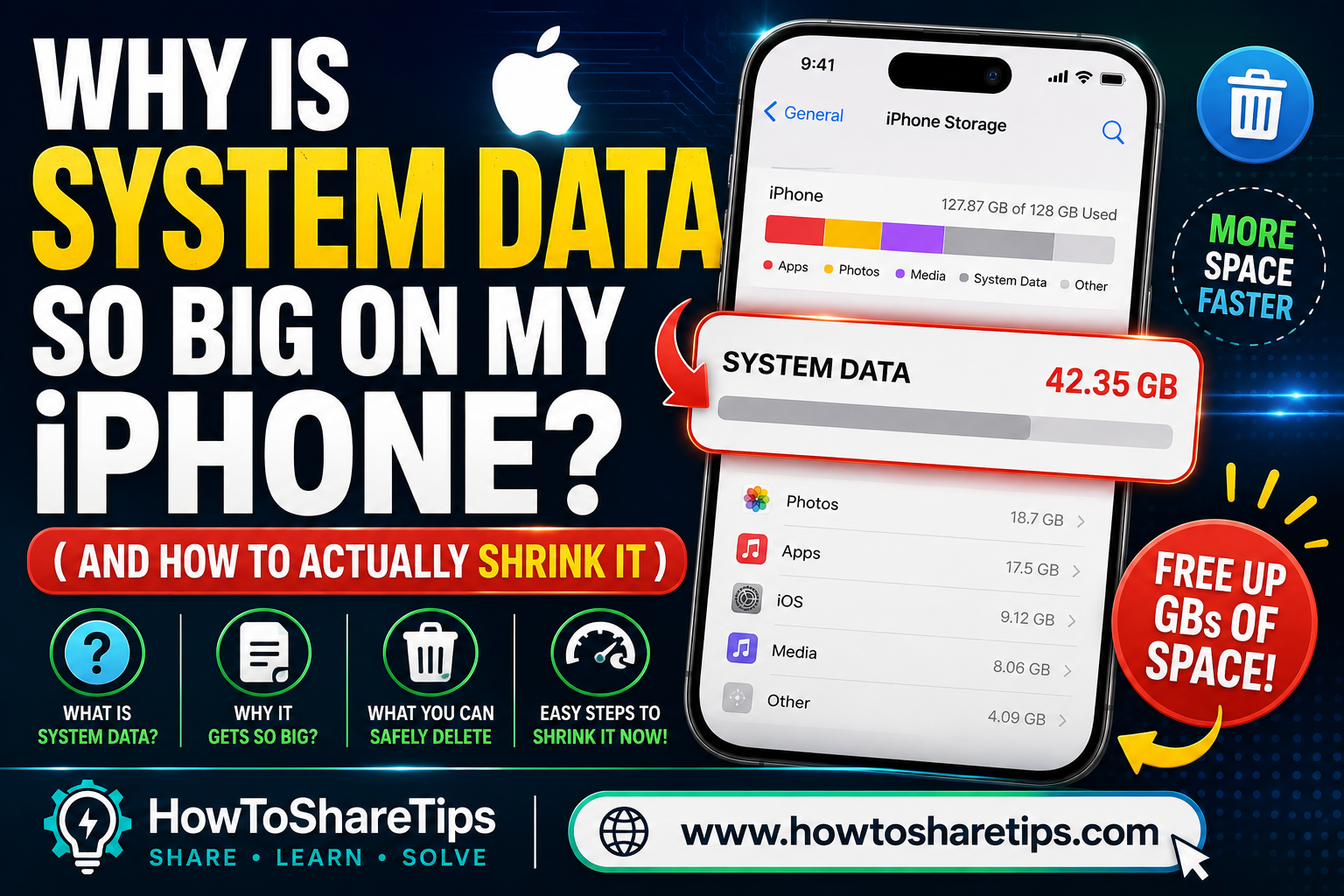
You open Settings, tap General, then iPhone Storage, and there it is. A gray bar labeled System sitting at 40, 60, sometimes over 100 gigabytes, on a phone where your actual photos and apps barely add up to half that. You didn’t download anything huge. You didn’t record hours of video. And yet this one mysterious category is quietly eating your entire phone.
If you’ve searched for this, you already know the frustration isn’t really about the storage warning. It’s the total lack of control. Apple lets you delete an app in two taps. It lets you offload photos to iCloud in a menu. But System Data just sits there, unclickable, unexplained, and seemingly immune to anything you try.
Here’s the good news. System Data isn’t actually a black box, and it isn’t random. It’s a specific, identifiable pile of caches, logs, and leftover files, and there are real, working ways to bring it back down, along with a few popular “fixes” floating around the internet that don’t actually do anything. This guide walks through both, so you’re not wasting an evening changing your phone’s clock forward a year because someone on Reddit said it works.
What System Data Actually Is
Apple’s own definition is intentionally vague. It describes System Data as caches, logs, and other resources currently in use by the system. That’s technically true, but it’s not very useful if you’re trying to figure out why it’s 55GB. In practice, System Data is a catch-all bucket for things that don’t fit neatly into “Apps,” “Photos,” or “Media.” That usually includes:
- Cached data from apps, meaning temporary files apps store to load faster next time, like Spotify’s downloaded song fragments, YouTube’s video buffer cache, or Discord’s media cache
- Safari’s browsing cache and website data
- Siri voice data and on-device language processing files
- Message attachments that were downloaded but categorized separately from the visible Messages storage number
- Software update files that didn’t fully clear after an iOS update installed
- Spotlight search index data, which gets rebuilt after every major iOS update
- Corrupted or duplicated backup snapshots stored locally during failed iCloud syncs
For context, a healthy System Data size on most modern iPhones sits somewhere between 8GB and 20GB. If yours is sitting between 20 and 50GB, that’s elevated but not necessarily broken, especially right after an iOS update. Once you’re seeing 50GB, 100GB, or more, on a phone that doesn’t have the apps or media to justify it, you’re dealing with genuine cache buildup that needs to be addressed directly.
Why This Got Worse Recently
If this has only become a problem for you in the last year, you’re not imagining it. A few things have converged to make System Data bloat more common in 2026 specifically. iOS updates now involve heavier on-device processing for features like enhanced Spotlight indexing and on-device AI capabilities, both of which generate substantial temporary cache data during and after installation. Update installation files also sometimes fail to fully clear themselves after the install finishes, especially if the phone restarts at the wrong point in the process, according to reports collected in Apple’s own support community discussions.
The result is that right after installing a new iOS version, it’s completely normal to see System Data spike temporarily while the phone finishes background indexing tasks. The problem is when that spike never comes back down, which is usually a sign that specific apps are hoarding cache faster than the system is clearing it.
The Fixes That Actually Work
Start by identifying which apps are the real culprits
Before doing anything drastic, go to Settings, General, iPhone Storage, and scroll through your app list. Look specifically at apps you use for streaming, messaging, or social media, since these are consistently the biggest offenders. Users digging into this have repeatedly found that apps like Spotify, YouTube, Discord, and TikTok can individually hold anywhere from 2GB to 7GB or more in pure cache data, all of which gets bucketed into System Data rather than shown under the app’s own storage number.
For each heavy app, delete it and reinstall it rather than just offloading it. Offloading keeps some data behind for a faster reinstall. A full delete and reinstall clears the cache completely, and you’ll just need to log back in.
Clear Safari’s cache directly
Go to Settings, then Safari, scroll down, and tap Clear History and Website Data. This removes browsing history, cookies, and cached website data that can quietly accumulate into several gigabytes over months of use, particularly if you frequently browse media-heavy sites.
Reduce how long Messages keeps attachments
Photos, videos, and voice memos sent through iMessage are a major hidden contributor, especially in active group chats. Go to Settings, then Messages, then Keep Messages, and change it from Forever to either 1 Year or 30 Days. You can also go into individual conversations, tap the contact name at the top, and manually review and delete large photo and video attachments without deleting the conversation itself.
Turn on Offload Unused Apps
In Settings, go to App Store and enable Offload Unused Apps. This automatically removes apps you haven’t opened in a while while keeping your data and icon in place, and it reduces the accumulated cache tied to apps sitting dormant on your phone.
Give it time after an iOS update before panicking
If your System Data spiked right after installing a new iOS version, the most effective fix is often simply waiting. Background indexing, particularly Spotlight rebuilding its search database, can temporarily inflate System Data by a large margin. In most documented cases, this resolves on its own within 24 to 72 hours as long as the phone has normal usage and isn’t left completely off. Restarting the phone once during this window can help clear some of the temporary files faster.
The full reset and restore, as a last resort
If none of the above brings your System Data down and it’s sitting at an abnormal size for weeks, a full backup followed by an erase and restore is the most reliable fix, because it wipes out corrupted cache files that can’t be cleared any other way. Back up your iPhone through iCloud or your computer first, then go to Settings, General, Transfer or Reset iPhone, and Erase All Content and Settings. Restore from your backup afterward. This is a bigger step and takes time, so treat it as the fix for a genuinely abnormal case, like System Data taking up 100GB or more with no clear cause, rather than a routine maintenance step.
Fixes You’ll See Online That You Should Skip
A few “solutions” circulate widely in forums and are worth calling out specifically, because they either don’t work or carry unnecessary risk.
Changing your iPhone’s date forward by a year, then waiting, then changing it back gradually, is a workaround some users report having partial success with, but it’s inconsistent, can interfere with app functionality and certificate validation while your date is wrong, and isn’t something Apple has ever confirmed as an actual fix. If you try it, understand you’re experimenting, not applying a known solution.
Third party “cleaner” apps that promise to scan and remove System Data automatically are largely limited by Apple’s sandboxing rules, meaning they can’t actually access or delete most of what’s inside System Data the way similar tools can on Android or a computer. Some genuinely help with photo duplicates and large file identification, but be skeptical of any app that claims to directly clear System Data itself, since iOS doesn’t grant that level of file system access to third party apps.
Keeping It From Coming Back
Once you’ve brought System Data down to a reasonable size, a bit of routine maintenance keeps it from creeping back up.
Check your iPhone Storage screen roughly once a month, not because anything is wrong, but because catching a 5GB spike early is far easier to deal with than discovering a 50GB problem six months later. Delete and reinstall your heaviest streaming and social apps every couple of months if you notice their storage number creeping up. Keep your Messages history setting at 1 Year instead of Forever if you’re in active group chats with a lot of shared media. And don’t panic immediately after every iOS update. A temporary spike in System Data for a few days is normal behavior, not a sign something has gone wrong with your phone.
When It’s Worth Contacting Apple Directly
If you’ve gone through a full backup and restore and your System Data still climbs back to an abnormal size within a day or two, that’s no longer a routine cache issue, and it’s worth reaching out to Apple Support directly or booking a Genius Bar appointment. Persistent, rapid System Data regrowth immediately after a clean restore can indicate a bug tied to a specific app or iCloud sync issue that needs Apple’s own diagnostics to identify, rather than something fixable through settings alone.
Most of the time, though, the fix is less dramatic than it feels when you’re staring at a nearly full phone. Identify the apps hoarding cache, clear Safari and Messages data, give updates a few days to settle, and reset to a clean restore only if everything else genuinely fails. Your storage bar will thank you.
I hope you have learned why System Data takes up so much space on your iPhone and the real, working ways to clear it, plus which popular online fixes actually don’t work.