

Setting up a brand-new PlayStation 4 can feel intimidating if it’s your first gaming console, but it’s actually quite simple when you follow the right steps. In this guide, we’ll walk you through everything from connecting your console, charging your controller, setting up the internet, creating a PlayStation Network account, and downloading your first games. By the end, your PS4 will be fully ready to play.
Out of the box, a standard PS4 package comes with the console itself, a power cable, an HDMI cable, one wireless controller, a controller charging cable, and an earbud with an integrated microphone. Knowing what each component does will make setup smoother and prevent confusion during the process.
Connecting Your PS4 and Charging the Controller
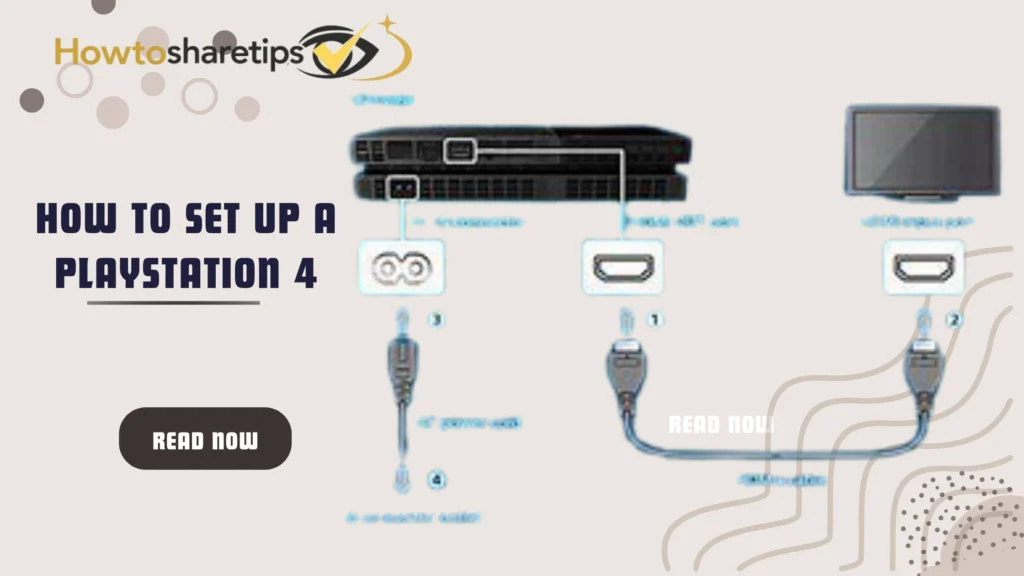
The first step in setting up your PS4 is connecting it to your television. Take the HDMI cable and plug one end into the HDMI output on the back of the PS4 and the other end into an available HDMI port on your TV or home theater receiver. Next, plug in the power cable, connecting it from the console’s power port to a wall outlet. This will power the system and prepare it for initial setup.
Charging your controller is important before you start playing. Connect the charging cable to the top of your controller and plug the other end into one of the two USB ports on the front of the console. Since the cable is relatively short, it’s best to charge the controller while it is not in use and disconnect it once fully charged. This ensures uninterrupted gameplay and keeps your battery healthy.
Powering On and Configuring the PS4
On the front of the PS4, there are two thin buttons. The top button is the power button, which you should touch briefly to turn on the system. During the first startup, the console may take a few moments to configure itself and might even restart once. After this, press the PlayStation button on your controller to begin the initial setup.
The setup process guides you through several important steps, including selecting your preferred language, setting the date and time, and connecting to the internet. Taking a few extra minutes here ensures your system is fully ready for online services and personalized settings.
Setting Up Internet and Online Connectivity
Your PS4 can connect to the internet either wirelessly or using a wired Ethernet connection. For a wireless setup, select your network from the available list and enter your password. A wired connection can be established by plugging an Ethernet cable from your router directly into the console. Once connected, it’s important to update your system software if prompted. Updates ensure your console runs smoothly and is compatible with online services such as the PlayStation Network.
Being online also allows you to explore features such as multiplayer gameplay, downloading games from the PlayStation Store, and saving game progress to the cloud. A stable connection is essential for the best experience, especially when playing online or streaming content.
Creating a PlayStation Network Account
To take full advantage of your PS4, you’ll need a PlayStation Network (PSN) account. During the setup process, you can choose a username and either sign in to an existing PSN account or create a new one. A free account allows you to access the PlayStation Store, save your progress to the cloud, and connect with friends online.
If you don’t have an account yet, follow the prompts to create one by entering your email and choosing a secure password. Once your account is active, you can customize your avatar, adjust privacy settings, and start building your gaming profile.
PlayStation Plus and Profile Customization
During setup, the PS4 will prompt you to sign up for PlayStation Plus, which is a paid subscription service. PlayStation Plus provides several benefits, including free downloadable games every month and access to online multiplayer features in popular titles. Keep in mind that if you cancel your subscription, you will no longer have access to the previously downloaded free games.
While signing up, you can also personalize your profile by selecting a custom avatar, adjusting sharing settings, and linking your account to social platforms if desired. These options help make your gaming experience more personal and allow friends to recognize you online.
Activating Your PS4 and Downloading Games
Finally, you’ll be asked whether to activate this console as your primary PS4. Activating it allows purchased content to be shared across different profiles on the same system. If this is your only PS4, it’s recommended to activate it.
After activation, you can start downloading games from the PlayStation Store or inserting physical game discs into the console. The lower front button on the PS4 is the disc eject button; touch it briefly to remove a disc. To put the PS4 into rest mode, press the power button until you hear a beep. For a complete shutdown, hold the power button until you hear two beeps. Properly powering down ensures the system remains stable and reduces the risk of data loss.
Conclusion
After following these steps, your PS4 is fully set up and ready for gaming. From connecting cables to creating a PlayStation Network account, configuring online access, and learning about PlayStation Plus, this guide ensures you can start playing games and exploring apps without confusion. With the system now operational, you can download the latest games, stream content, and enjoy all features the PS4 has to offer.
For more tips, tricks, and game recommendations to get the most out of your PS4, visit techradar.com for in-depth tutorials and updates.
Frequently Asked Questions (FAQ)
Do I need PlayStation Plus to play games online?
No, you don’t need PlayStation Plus for single-player games or free-to-play titles. However, most online multiplayer games do require a subscription to PlayStation Plus. With a subscription, you also get access to free games each month, exclusive discounts on the PlayStation Store, and the ability to save your game progress to the cloud. This makes it easier to access your games and saves on any PS4 console.
Can I set up my PS4 without Wi-Fi?
Yes, you can set up your PS4 without a Wi-Fi connection, but you will miss out on many online features. You can still play offline games, watch movies or media apps, and use content from discs. Features like online multiplayer, cloud saves, and automatic system updates require an internet connection. So, for the best experience, connecting your PS4 to the internet is recommended.
How do I charge and pair my PS4 controller?
To charge your PS4 controller, connect it to the console using the USB charging cable. Press the PlayStation button on the controller to pair it with the system. Once paired, you can use the controller wirelessly for several hours, depending on battery level. It’s a good practice to keep the controller charged when not in use so it’s ready for gaming.
Can I share games with family on the same PS4?
Yes, you can share games with other users on the same PS4 by activating your console as the primary PS4. This allows all profiles on the system to access purchased games and downloadable content. Keep in mind that individual PlayStation Plus subscriptions are still required for online multiplayer for each user who wants to play online.
How do I update my PS4 system software?
To update your PS4, go to Settings > System Software Update. Installing updates keeps your console compatible with the latest games, improves system stability, and can unlock new features. Regular updates ensure your PS4 runs smoothly and helps prevent errors during gameplay.
What is Rest Mode, and should I use it?
Rest Mode puts your PS4 into a low-power state while still performing essential tasks. In this mode, the system can charge controllers, download game updates, and even install games. To enter Rest Mode, press the power button briefly until you hear a beep. It’s a convenient option if you want your PS4 to stay ready without fully powering it off.


