
 How To Share Tips
How to Adjust PS5 Resolution for Optimal Visuals and Performance
As a dedicated gamer, one of the most immersive experiences comes from enjoying games on the PlayStation 5 with the highest possible visual quality. The PS5 is capable of delivering stunning graphics, supporting resolutions up to 4K, HDR, and even 8K output on compatible displays. By properly adjusting your console’s resolution and video output settings, you can enjoy sharper textures, smoother frame rates, and more vibrant colors. Optimizing your PS5 for your display ensures that every character model, environment, and cinematic sequence appears exactly as developers intended. This process not only improves graphics but also enhances gameplay responsiveness, giving you a more fluid and enjoyable gaming experience overall.
Adjusting PS5 resolution and video settings involves more than simply picking a number from a menu. It requires understanding your display’s capabilities, your personal preferences for graphics versus performance, and the type of games you typically play. By fine-tuning these settings, you can maximize both visual fidelity and responsiveness, ensuring that your PS5 delivers a next-generation gaming experience. With the right setup, even fast-paced competitive games become smoother, while open-world or cinematic titles appear richer and more detailed. Fine-tuning resolution also allows you to take full advantage of features like HDR, Variable Refresh Rate, and 120Hz output on supported games and displays, giving you control over how your games look and feel.
Why Adjusting Your PS5 Resolution Is Important
Adjusting the PS5 resolution is essential for several reasons. First, it directly affects visual clarity and graphical fidelity. Higher resolutions such as 4K or 8K make character models and in-game environments sharper, bringing out intricate details that lower resolutions may blur or simplify. Fine textures, distant scenery, and subtle lighting effects become more noticeable at higher resolutions. This can be particularly striking in games with rich art design, such as sprawling open-world adventures or visually detailed RPGs. Optimizing your resolution ensures that you see the game exactly as developers intended, providing a more cinematic and immersive experience.
Second, resolution impacts gameplay performance. Many players may not realize that selecting the highest resolution is not always the best option for all game types. Fast-paced games like first-person shooters or racing titles often benefit from slightly lower resolutions paired with higher frame rates. By adjusting resolution alongside features such as Performance Mode or Fidelity Mode, you can balance visual quality with smooth gameplay. Performance Mode generally prioritizes higher frame rates, making movements and reactions feel more responsive. Fidelity Mode, on the other hand, emphasizes graphics and detail. Understanding how to adjust resolution based on your display and the type of game you are playing allows you to tailor your experience to your preferences.
Finally, adjusting resolution ensures compatibility with your display. Not every TV or monitor supports 4K or 8K natively. Incorrect settings can result in visual artifacts, screen tearing, or even input lag, which can disrupt gameplay. Manually configuring the video output ensures your PS5 matches your display’s capabilities, delivering the best combination of clarity and performance. Whether you are using a 4K television, a 1440p gaming monitor, or an 8K-capable setup with a PS5 Pro, proper resolution settings make a noticeable difference in both graphics and responsiveness.
Preparing to Change PS5 Resolution
Before adjusting your console’s resolution, it is important to ensure that your setup is compatible. Start by checking that your TV or monitor supports the resolution you want to use. For 4K at 60Hz or higher, or 8K output, your display must be equipped with HDMI 2.1 ports. Older HDMI versions may not support the bandwidth required for high-resolution output, which can result in blank screens or visual glitches. Additionally, using the high-speed HDMI cable that comes with your PS5 is critical to ensure the console can transmit the full resolution and refresh rate.
It is also important to connect your PS5 directly to your display, avoiding receivers or HDMI splitters, as these can limit bandwidth and prevent features like 4K at 120Hz or 8K output. Ensuring both your PS5 and your display have the latest firmware updates is also essential. Updates may enable advanced features such as Variable Refresh Rate, Auto Low Latency Mode, or improved HDR performance. By preparing your hardware and verifying compatibility, you set the foundation for optimizing your PS5’s video output.
Accessing Screen and Video Settings
The first step in adjusting your resolution is accessing the PS5’s Settings menu. From the home screen, select the gear icon in the top-right corner to open Settings. Within this menu, you will find multiple options including network, system, and account settings, but the focus for video adjustments is the Screen and Video section. This area of the console’s settings contains all the options related to display, such as resolution, HDR, RGB range, and 4K Video Transfer Rate.
Entering the Screen and Video settings gives you full control over how games and media appear on your display. Here, you can adjust the resolution manually or leave it on Automatic to let the PS5 select the optimal output based on your connected display. Additionally, you can fine-tune advanced settings to match your preferences, balancing visual fidelity and performance for each type of game you play. Taking the time to explore this menu ensures you understand all options available and can make informed decisions when adjusting video settings.
Navigating Video Output Settings
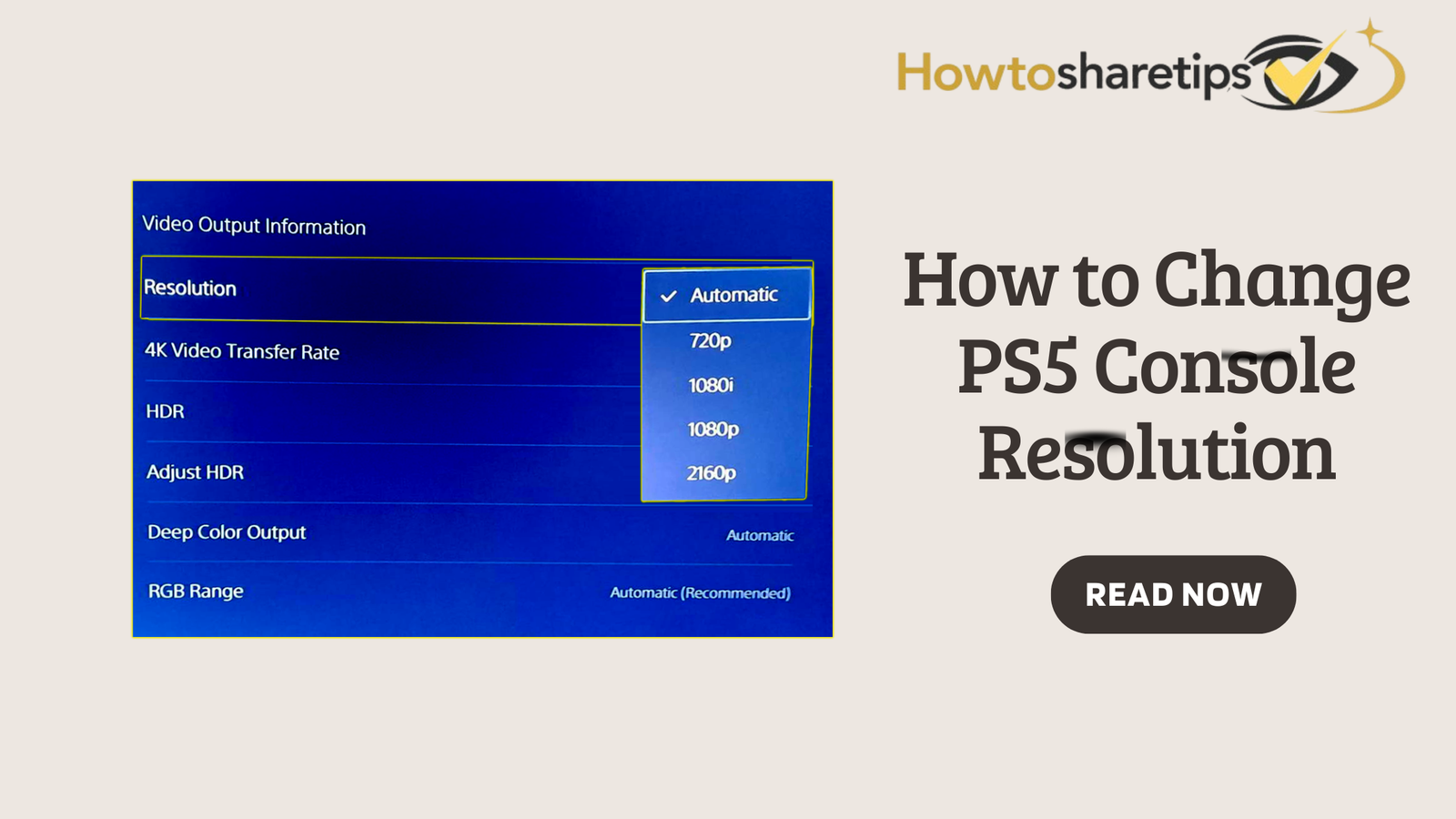
Once you are in the Screen and Video menu, the next step is to navigate to Video Output. This section provides information about your current video signal and allows you to adjust settings to optimize performance for your display. Within Video Output, you can select the resolution, refresh rate, and toggle features such as HDR or RGB range. The system will provide feedback about what your display supports, allowing you to avoid setting a resolution that might cause errors or performance issues.
By selecting Video Output Information, you gain detailed insights into your display’s maximum supported resolution, refresh rate, and HDR compatibility. Understanding these details ensures that your PS5 is utilizing your display’s full capabilities. Adjusting settings based on this information can improve image clarity, reduce flickering, and prevent issues such as screen tearing. The Video Output menu is where technical adjustments combine with practical gameplay improvements, allowing your console to deliver visuals that match both your display and your personal preferences.
Selecting the Right Resolution
Within Video Output, the PS5 allows you to choose from multiple resolution options including Automatic, 2160p for 4K, 1440p, 1080p, and for PS5 Pro users, 8K. Automatic mode is the easiest way to ensure your console selects the optimal resolution for your connected display. However, manual adjustments may be beneficial if you want to prioritize graphics fidelity or performance. For example, if your display is a 4K television, selecting 2160p ensures that games take full advantage of the screen’s resolution. Similarly, for high-resolution monitors, 1440p may provide a better balance between visual clarity and performance.
For PS5 Pro users with an 8K-compatible display, enabling 8K output with Display Stream Compression ensures high-resolution visuals without overloading the display or console bandwidth. Additionally, testing 1440p output on compatible monitors helps confirm support for SDR or HDR modes, refresh rates, and Variable Refresh Rate functionality. Properly selecting the resolution is the foundation for achieving the best visual experience, improving both sharpness and performance across all games.
Fine-Tuning Advanced Display Settings
After choosing the resolution, additional adjustments can further enhance your gaming experience. High Dynamic Range (HDR) should be set to “On When Supported” to ensure accurate colors and proper contrast. Using Always On for HDR is generally not recommended, as it can distort color in games that do not support HDR. Variable Refresh Rate is another key setting, reducing screen tearing and stuttering for smoother gameplay. If visual glitches occur in certain games, VRR can be temporarily disabled for those titles to maintain stability.
For games that support 120Hz output, set the option to Automatic. This allows compatible titles to run at higher frame rates, delivering smoother motion and faster responses. Adjusting the display area under Screen and Video settings helps correct black borders or cutoff edges, ensuring that all in-game visuals, including HUD elements, fit perfectly on your screen. These fine-tuned settings allow your PS5 to fully utilize its hardware capabilities, making games look and feel more immersive.
Testing and Troubleshooting Display Settings
If your selected resolution does not display correctly, several troubleshooting steps can resolve most issues. Start by checking your HDMI cable and connection. Ensure that you are using an HDMI 2.1 port on your display for 4K at 120Hz or 8K output. Direct connections without splitters or receivers often solve most display problems. Confirm that your TV’s HDMI 2.1 features are enabled, as some displays require manual activation of high-bandwidth modes.
If problems persist, boot your PS5 into Safe Mode by holding the power button until a second beep is heard. From Safe Mode, you can select Change Resolution or adjust HDCP Mode to match your display’s capabilities. After making any adjustments, restart both the console and display to apply the new settings. Following these steps ensures that your PS5 displays visuals correctly and consistently.
Optimizing PS5 Pro Graphics
The PS5 Pro introduces enhanced visual features, including PlayStation Spectral Super Resolution, which uses AI upscaling to improve image quality. For 8K displays, enabling 8K output at 60Hz with Display Stream Compression ensures smooth performance. For most 4K displays, leaving the resolution on Automatic or selecting 2160p allows AI-enhanced upscaling to improve textures, colors, and detail. Game-specific PS5 Pro patches often further optimize resolution and frame rates, providing smoother and more visually rich gameplay. Combining proper resolution, advanced display settings, and AI enhancements unlocks the full potential of the PS5 Pro.
Additional Tips for Optimal PS5 Visuals
Calibrating HDR, setting Performance or Resolution modes in game presets, and ensuring your network supports features like Remote Play all contribute to a better visual experience. Fine-tuning brightness and contrast ensures colors appear natural, while enabling VRR and 120Hz output enhances smoothness in fast-paced games. Paying attention to these details allows you to experience next-generation graphics exactly as developers intended, making every game environment and cinematic sequence more immersive.
Conclusion: Maximizing PS5 Visuals and Performance
Adjusting PS5 resolution and video settings is essential for enjoying the console’s full graphical potential. Whether you select 4K, 1440p, or 8K, proper configuration ensures sharp images, smooth motion, and vibrant colors. Fine-tuning advanced settings like HDR, Variable Refresh Rate, and 120Hz output further enhances the gaming experience. Properly configured, the PS5 delivers both stunning visuals and responsive gameplay, making every game more enjoyable. For detailed guidance or troubleshooting, Sony’s official support resources provide additional assistance, ensuring your PS5 setup is optimized for the best possible performance and graphics.


 How To Share Tips