

How to Connect Your PS5 to the Internet: A Complete Guide
Connecting your PlayStation 5 (PS5) to the internet is essential to fully experience what the console has to offer. Once online, your PS5 allows you to play multiplayer games, download updates, and access streaming services like Netflix, YouTube, Disney+, and Spotify. A stable connection also supports cloud saves, automatic backups, and quick downloads from the PlayStation Store. This ensures your game data is safe and up to date, providing a smooth gaming experience. Without an internet connection, you miss out on many features that make the PS5 a next-generation gaming console.
There are two main ways to connect your PS5 to the internet: wired Ethernet and wireless Wi-Fi. A wired Ethernet connection provides maximum speed and stability, which is perfect for competitive online gaming or downloading large games. Wi-Fi connections offer flexibility, allowing you to place the console anywhere within range of your router. Each method has benefits and drawbacks, so understanding them helps you choose the best option for your setup.
Setting up an internet connection on the PS5 is straightforward. First, navigate to Settings, then Network, and select Set Up Internet Connection. From here, you can choose either a LAN cable for a wired setup or scan for available Wi-Fi networks. After selecting a network, enter your password if required. The PS5 automatically tests the connection, confirming successful internet access. Following these steps ensures uninterrupted online play, reliable downloads, and access to all digital content.
Why Connecting Your PS5 to the Internet Matters
Connecting your PS5 online unlocks the console’s full potential. Many key features, including multiplayer gaming, automatic system updates, and access to the PlayStation Store, rely on a live internet connection. Without it, you cannot download patches or expansions, which may improve performance, fix bugs, and add new content. Staying connected keeps your PS5 optimized for the best experience.
An internet connection also enables cloud saves and automatic backups. This feature safeguards your progress, achievements, and game settings. If you switch consoles or experience hardware issues, you can recover your data quickly. These backups provide peace of mind, allowing you to play confidently without worrying about lost progress.
Online connectivity also allows you to stream movies, shows, and music. Platforms like Netflix, YouTube, and Disney+ run smoothly, while social features enable messaging, sharing clips, and connecting with friends. By keeping your PS5 online, you enjoy both gaming and multimedia functions, making it a versatile entertainment hub.
Preparing to Connect Your PS5
Before connecting, ensure you have all necessary components. You need your PS5 console, a stable internet connection, network credentials, and a fully charged DualSense controller. Confirm your Wi-Fi password to avoid setup interruptions. Having everything ready makes the process smoother and faster.
Choosing Between Wi-Fi and Ethernet
Wi-Fi provides flexibility and convenience. You can place the console anywhere within signal range without running cables. However, Wi-Fi connections may experience interference or slower speeds in some cases. A 5 GHz Wi-Fi network is preferable for faster speeds, while 2.4 GHz offers longer range but slower performance.
Wired Ethernet connections are ideal for competitive online gaming or large downloads. They offer lower latency and more stable speeds compared to Wi-Fi. Simply connect an Ethernet cable from your router to the PS5 LAN port, select LAN Cable in the setup menu, and the console will automatically detect the connection. Wired setups minimize interruptions and maximize performance.
Testing and Optimizing Your Connection
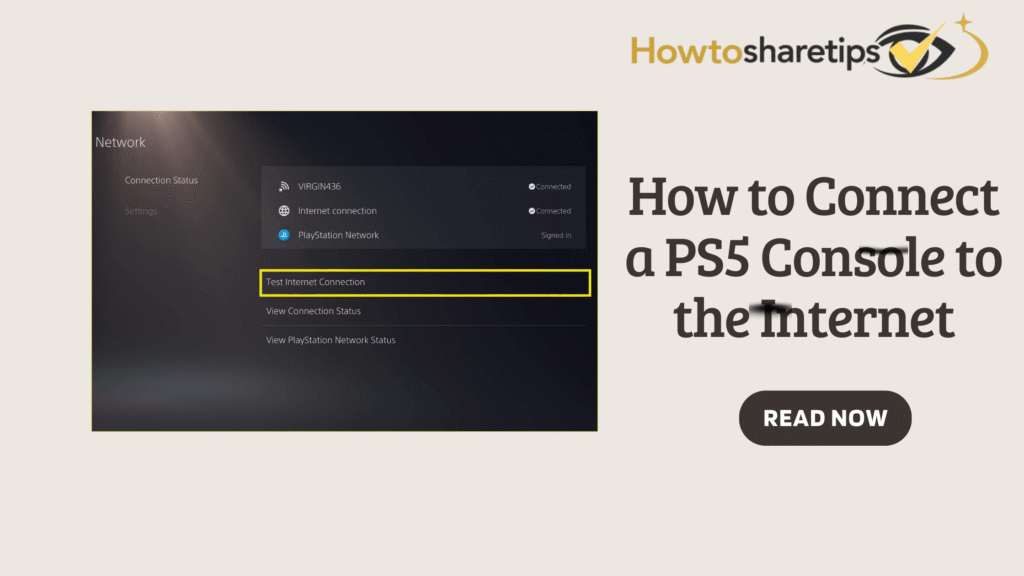
Once your PS5 is connected, it is important to test the network. Go to Settings, then Network, and select Connection Status. Choose Test Internet Connection to view IP address, NAT type, and download/upload speeds. NAT Type 1 or 2 is ideal for gaming, while NAT Type 3 may restrict certain features. Testing ensures your connection is stable and ready for online play.
To maintain optimal performance, keep your PS5 system software updated. Navigate to Settings, then System, and select System Software Update and Settings. Follow the prompts to update. Regular updates prevent compatibility issues and ensure smoother online gameplay.
Troubleshooting Common Internet Issues
Sometimes, PS5 connections may encounter issues. If your console cannot detect Wi-Fi, move closer to the router, restart devices, or enter network credentials manually. Incorrect passwords are a common cause of connectivity problems, so double-check your credentials. NAT Type 3 issues can be resolved by enabling UPnP or setting up port forwarding on your router. Slow connections may improve by reducing network congestion, moving closer to the router, or using a wired Ethernet connection. If problems persist, PlayStation support offers helpful resources at playstation.com/repairs.
Enhancing Your PS5 Internet Performance
To get the best online experience, a wired Ethernet connection is recommended for stability and speed. If Wi-Fi is necessary, place your router in a central, open area to minimize interference. Avoid placing it near walls or electronic devices that may block signals. Many routers allow Quality of Service (QoS) settings to prioritize your PS5, reducing lag during peak network use. Monitoring your data usage prevents throttling from your Internet Service Provider, which can slow downloads and streaming. Implementing these steps improves online performance and ensures smoother gameplay.
The Benefits of a Stable Connection
A stable internet connection transforms your PS5 into a true entertainment hub. Reliable connectivity allows you to participate in co-op games, competitive matches, and stream 4K content without buffering. Downloads and updates complete faster, while cloud saves function correctly. Social features like messaging, voice chat, and sharing clips work seamlessly, making the gaming experience more immersive. Overall, a consistent connection enhances both gaming and media performance.
Conclusion
Connecting your PS5 to the internet unlocks the console’s full capabilities. Wi-Fi offers flexibility, while Ethernet provides maximum stability. Testing the connection and keeping system software updated ensures uninterrupted online gaming, streaming, and social features. Even if issues arise, PlayStation support provides troubleshooting guidance. Following these steps allows you to fully enjoy your PS5 as a next-generation entertainment system.
Frequently Asked Questions (FAQs)
Connecting your PS5 is necessary to access online features, multiplayer games, digital downloads, updates, and streaming services. It also enables cloud saves and social sharing. Without it, the console is limited to offline single-player experiences and pre-installed content.
The PS5 can connect using Wi-Fi or Ethernet. Wi-Fi provides convenience and flexibility in placement, while Ethernet delivers faster speeds and stable connections. Wired connections are particularly beneficial for competitive gaming and large downloads.
To connect to Wi-Fi, go to Settings, select Network, choose Set Up Internet Connection, and pick Use Wi-Fi. Select your network, enter the password, and let the PS5 test the connection. The console reconnects automatically when powered on.
For wired connections, plug an Ethernet cable into the PS5 LAN port. Navigate to Settings, then Network, select Set Up Internet Connection, and choose LAN Cable. The console detects the connection, providing fast and stable online access.
For online gaming, a stable connection of at least 5 Mbps is suitable. For streaming, multiplayer games, and large downloads, 15–25 Mbps or higher is recommended. Wired connections or strong Wi-Fi reduce lag and ensure responsiveness.
If issues occur, restart the console and router, verify Wi-Fi passwords, and test the connection in Settings under Network and Connection Status. Adjust router settings such as UPnP or DNS as needed.
Public Wi-Fi can be used, but authentication may require a mobile hotspot or router bridge. These networks may be slower and less secure, potentially affecting gaming performance.
To check connection status, go to Settings, then Network, and select Connection Status. You can view the type, IP address, and NAT type. Running a Test Internet Connection ensures online features and updates work correctly.